TL;DR: Google has launched its native Gemini app for macOS Sequoia, bringing on-screen AI assistance directly to Apple Silicon Macs without requiring a browser tab. Business users can invoke the assistant via global shortcuts to analyze on-screen code, documents, and data, or to access creative tools like Veo video generation.
Google launched its native Gemini app for macOS, integrating its generative AI model directly into the desktop operating system for enterprise users in 2026. The application runs natively on Apple Silicon hardware and requires macOS Sequoia (15.0) or later. See our Full Guide to learn more about the early testing phases of this desktop deployment. By bypassing the browser, the application provides professional users with immediate access to contextual analysis and creative tools.
Google Gemini Integrates Directly Into the macOS Desktop Experience
The native Gemini app for macOS integrates directly with Apple's operating system to provide context-aware assistance without the need to manage browser tabs. Business professionals can call the AI using a global shortcut, Option + Space, which opens a mini chat window on top of any active application. For a complete interface, users can press Option + Shift + Space to access the full chat window. Both of these shortcuts are customizable within the application settings to avoid conflicts with existing enterprise workflow tools.
Screen Sharing and Contextual Analysis
The application uses the content visible on your active screen to generate specific answers. Users can share their active window with Gemini to get instant help analyzing documents, debugging source code, or processing spreadsheet data. To enable full webpage analysis within a browser, users must navigate to macOS System Settings, select Privacy & Security, and enable Accessibility permissions for the Gemini app. Once configured, the tool reads on-screen data to answer questions without manual copy-pasting.
Enterprise Security and Syncing
Google Account synchronization maintains data consistency across the corporate environment. Chat history and memory sync across all authorized devices when you sign into the same Google account. This synchronization ensures that research started on a mobile device or web browser remains accessible on the macOS desktop app.
What Are the System Requirements for the Gemini Mac App?
The Gemini desktop application requires a Mac computer running macOS Sequoia (15.0) or later powered exclusively by Apple Silicon processors. Intel-based Mac hardware is not supported. The application is available at no cost in all countries and languages where Gemini services are currently active, and is restricted to users aged 13 and older.
Installation and Access Methods
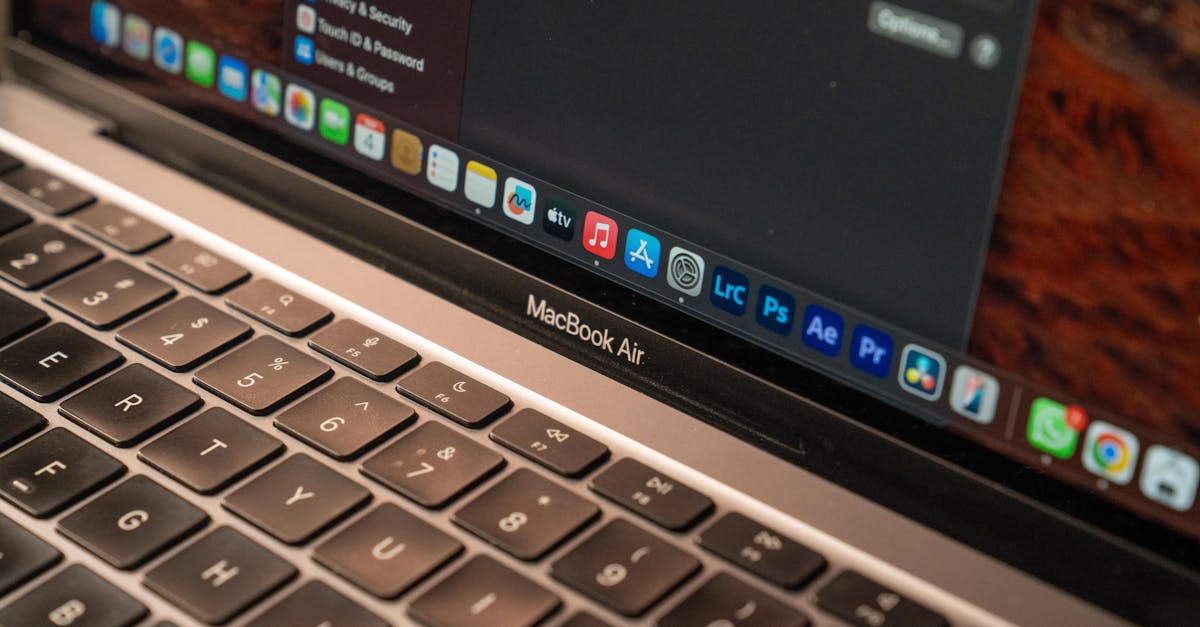
Users can launch the application through three distinct methods once it is installed. First, the application can be opened using the customizable global keyboard shortcuts. Second, a dedicated Gemini icon lives in the macOS menu bar at the top of the screen for quick mouse access. Third, users can pin the application directly to the macOS Dock for standard launching.
Hardware Performance on Apple Silicon
By running exclusively on Apple Silicon M-series chips, the application leverages the unified memory architecture of modern Mac hardware. This hardware optimization ensures that background AI operations do not cause system latency or drain laptop battery life during intensive tasks. The native integration bypasses the performance overhead associated with running large language models inside web browsers.
How Can Teams Use Gemini for Creative Production on macOS?
Creative teams can use the macOS Gemini app to access Google's suite of generative models, including Nano Banana for image creation and Veo for high-definition video generation. These creative tools are accessible via the desktop interface, allowing users to generate assets directly beside their primary design software.
Rapid Prototyping With On-Demand Asset Generation
Designers can initiate creative requests by typing prompts into the Gemini interface while keeping their primary creative suites open. The integration of Veo allows for rapid video prototyping, enabling marketing teams to generate draft video clips based on active document briefs on their screen. This workflow removes the need to export files or switch between creative platforms during the brainstorming phase.
Key Takeaways
- Native Shortcut Access: Use Option + Space for mini chat and Option + Shift + Space for full chat to bypass the web browser entirely.
- Hardware Limitations: The app requires Apple Silicon hardware and macOS Sequoia (15.0) or later to run.
- On-Screen Context: Enable Accessibility settings under Privacy & Security to let Gemini read and analyze active on-screen documents and browser pages.