TL;DR: Google is releasing its dedicated Gemini app for macOS Sequoia, bringing native context-aware AI assistance directly to Apple Silicon Mac desktops. The application integrates system-wide shortcuts, screen-sharing context, and native tools like Veo video generation to streamline executive and developer workflows. It runs as a local native client that syncs history across all signed-in Google accounts.
Enterprise productivity workflows on macOS are undergoing a rapid transformation as native desktop AI clients replace browser-based tools. Google is expanding its desktop footprint with the dedicated Gemini app for macOS, designed to integrate directly into executive and developer workspaces. See our Full Guide to understand how this desktop client compares to legacy browser-based extensions. As organizations plan their hardware and software procurement strategies leading into 2026, understanding the integration of native AI utilities into macOS is essential for maintaining operational efficiency. This application represents a transition toward context-aware desktop operating environments.
What Are the System Requirements for Google Gemini on macOS?
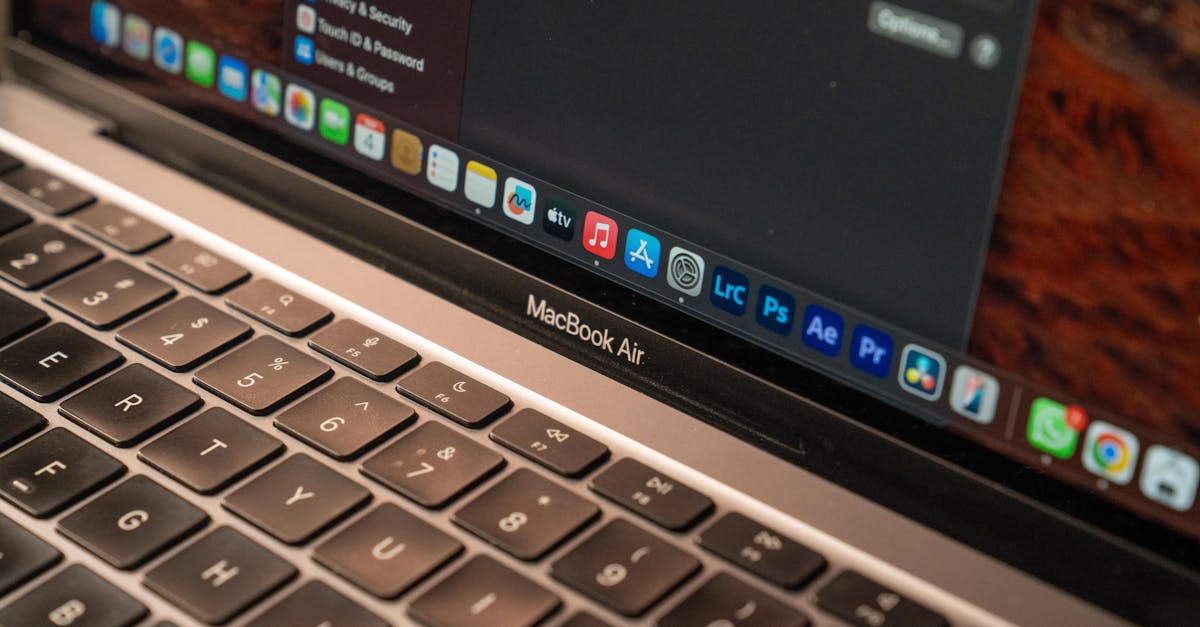
The Gemini app for macOS requires a Mac running macOS Sequoia (15.0) or later, powered exclusively by Apple Silicon processors. This hardware requirement means older Intel-based Mac systems cannot run the application, even if they have updated to the latest operating system version. Google relies on the Neural Engine inside Apple's M1, M2, M3, and M4 chips to handle background tasks and window-parsing functions efficiently. The application is available at no cost in all countries and languages where Gemini is currently supported. Users must be at least 13 years old to use the service, matching Google's standard age requirements for consumer AI tools. IT departments planning hardware lifecycles must audit their current inventory to identify legacy Intel systems that cannot run these native desktop AI clients. Upgrading to Apple Silicon ensures that local systems have the memory bandwidth required for high-throughput AI interactions.
Hardware Optimization on Apple Silicon
Apple Silicon's unified memory architecture allows rapid context processing for desktop applications. By restricting the Gemini app to M-series chips, Google ensures that local background processes—such as reading screen pixels and handling multi-window data—do not degrade system performance during intensive business tasks. The integration leverages Apple's hardware accelerators, reducing the battery drain typically associated with continuous web-browser instances. For professionals running multiple resource-intensive development environments, this hardware-level optimization preserves local processing power while delivering continuous, low-latency assistance.
Software and Account Requirements
Users must run macOS 15.0 Sequoia or later to install the client. The application requires a standard Google account login, which automatically syncs chat histories and personalization memory across mobile devices, tablets, and other desktop platforms. This cloud synchronization ensures that an executive can start an analysis on their desktop and continue reviewing the output on a mobile device while traveling. Enterprise accounts managed through Google Workspace must have administrator permissions enabled to allow the desktop client to connect to corporate data repositories.
How Do You Access and Control Gemini on the Mac Desktop?
Users can launch the Gemini macOS application using customizable keyboard shortcuts, the system menu bar, or the standard Application Dock. This multi-access framework ensures that the tool is available from any active window without requiring users to switch focus to a web browser. The primary interaction method utilizes keyboard shortcuts that overlay a mini chat window directly on top of active work. For deeper analysis, a separate shortcut opens the full-screen chat interface. Users can modify these key combinations in the application settings to match their established personal keyboard layouts. This accessibility architecture minimizes context switching, which cognitive studies show can drain up to 40 percent of daily productive time. By embedding the assistant directly into the operating system's control paths, Google lowers the technical friction required to retrieve real-time data. The immediate availability of the mini chat allows users to solve small query tasks in seconds before returning to their core workflows.
Customizing Keyboard Shortcuts
The default Option + Space shortcut matches standard desktop search triggers, allowing users to summon the mini assistant instantly from any active screen. For a more comprehensive workspace, pressing Option + Shift + Space opens the full chat interface. Administrators and power users can remap both combinations in the Settings menu to prevent conflicts with native macOS features like Spotlight or third-party productivity launchers. These customizable triggers allow seamless transitions between writing code in an IDE and querying the assistant for documentation.
Managing Screen and Accessibility Permissions
To allow Gemini to read full active browser pages and provide context-specific answers, users must grant explicit permission. Navigating to macOS System Settings, selecting Privacy & Security, and enabling Accessibility for Gemini activates the full screen-reading engine. Without this permission, the assistant cannot parse active screen pixels or read open documents. This configuration puts privacy control directly in the hands of the user, ensuring that corporate data is only accessed when explicitly permitted.
How Does the macOS Gemini App Assist with On-Screen Context?
Gemini uses the active window on your macOS screen to analyze code, documents, and visual data to deliver instant, context-specific answers. Users can share their screen with the app to receive immediate help based on exactly what they are viewing. This direct integration removes the need to copy and paste text or download and upload files between applications. The assistant reads the shared window context to answer complex questions about user-interface designs, database structures, or PDF reports. The application functions as an interactive overlay, allowing professionals to execute data-driven tasks faster. Instead of describing a problem, users simply point the assistant to the screen contents. This visual awareness streamlines troubleshooting processes and accelerates learning curves for new software tools. For example, a developer can display a compiler error message and ask Gemini for a patch without leaving the terminal interface. The integration of visual context-awareness bridges the gap between static code and active debugging.
Direct Document and Code Analysis
Instead of manually copying large blocks of proprietary code or financial datasets into a browser tab, users share their active window directly with Gemini. The assistant parses the visible text or structure to debug code, summarize spreadsheets, or extract mathematical formulas. This reduces the risk of clipboard leaks and speeds up repetitive analytic tasks. By operating within the visual context of the user's workspace, the AI reduces the time spent formulating detailed prompt descriptions.
Native Creative Tool Integration
The desktop client connects users directly to Google's advanced media generation engines. Creative teams can generate high-fidelity images using Nano Banana or produce synthetic video assets using Veo, all initiated via simple text prompts in the desktop interface. Bringing these generative creative suites directly to the desktop environment allows designers to build concepts on the fly. This integration removes the traditional friction of downloading assets from web interfaces and importing them into native design software.
Key Takeaways
- Upgrade corporate Mac hardware to Apple Silicon running macOS Sequoia (15.0) or later to run the native Gemini desktop application.
- Enable Accessibility permissions for Gemini in macOS System Settings to unlock screen-context analysis for documents, code, and browser pages.
- Use the customizable Option + Space shortcut to initiate immediate, low-friction brainstorming sessions and reduce context-switching overhead.